
Content teams
Plan your week ahead.
A fictional tea room turns the week’s themes into a three-post preview of its seven-day plan.
HARBORLIGHT TEA ROOM
Illustrative example- MonTea of the week
- WedBrewing tips
- FriA weekend question
Three steps
Prepare the week
Choose your topics, images, and copy.
Pick accounts and times
Confirm where and when each post should go.
Follow the results
Review the plan in Calendar and each result in post details.
See the week at a glance, without posting everything by hand at the last minute.
View the full walkthrough
Scenario
Prepare seven weekday/weekend ideas for a small fictional tea room, then schedule each one separately in a Workspace after a person approves the copy, media, account, and future time.
Before you start
- Sign in to your verified account and select the intended Workspace.
- Use an editor or owner Workspace role to upload media and schedule posts.
- Connect and select an account whose current eligibility supports each planned post. Platform and account capabilities vary.
- Prepare your own finished media files for any destination that requires media; the filenames below are labels, not downloadable fixtures.
Example inputs
- Fictional business and tone
- Harborlight Tea Room · calm, practical, welcoming · avoid health claims and customer testimonials.
- Planning window
- The next Monday–Sunday with all seven times still in the future; timezone Asia/Hong_Kong.
- Monday · 09:00 · opening note
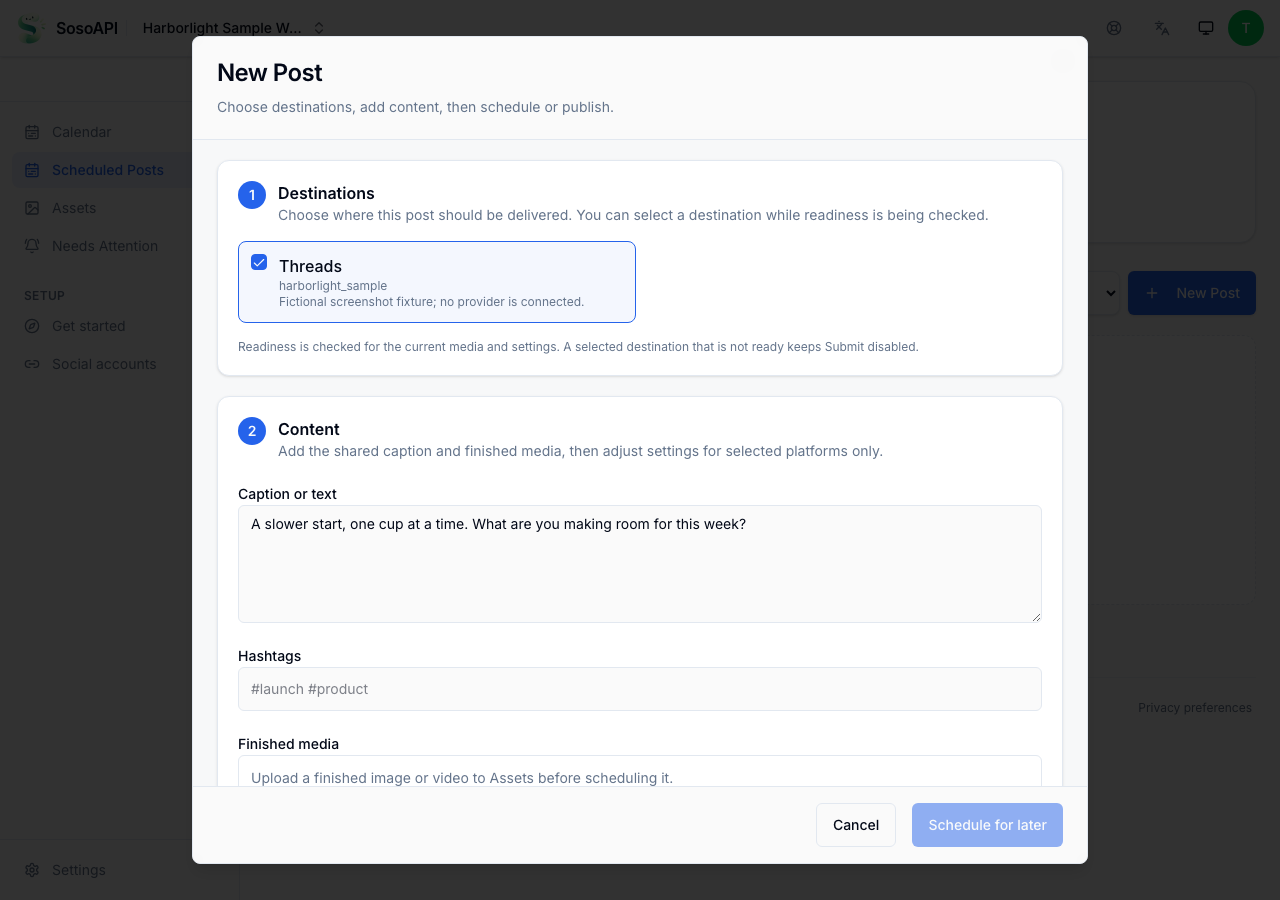
- “A slower start, one cup at a time. What are you making room for this week?” · media idea: tea leaves beside a plain cup.
- Tuesday · 12:00 · brewing guide
- “For a simple cold brew, steep tea in cold water in the fridge, then taste and adjust the strength.” · media idea: labeled recipe card.
- Wednesday · 18:00 · behind the scenes
- “Today’s small ritual: warm the pot, add the leaves, and give them a moment before the first pour.” · media idea: original preparation photo.
- Thursday · 12:00 · ingredient spotlight
- “This week’s tasting notes: a gentle floral aroma followed by a clean finish. Take a moment with each steep.” · media idea: ingredient still life.
- Friday · 16:00 · weekend prompt
- “Choose a cup for the weekend: bright, toasted, or floral? Save your pick for the next pot.” · media idea: three unlabeled cups.
- Saturday · 10:00 · serving idea
- “Try the same tea at two steep times and note which cup you prefer. Small changes make a useful tasting.” · media idea: two-cup comparison.
- Sunday · 17:00 · week close
- “A little recap before Monday: which brewing note would you like us to explore next?” · media idea: notebook and cup.
Walkthrough
Turn the brief into seven reviewed slots
Copy the seven example captions into a planning note or your own content sheet.
For each slot, confirm the text, destination account, required media, reviewer, and next matching weekday/time in Asia/Hong_Kong.
Replace any fictional wording that does not describe your real product. Do not present the example as a customer quote or product claim.
What to expect
You have seven human-reviewed content inputs. Nothing has been uploaded, submitted, scheduled, or published yet.
Check the Workspace and connected accounts
Open this area in SosoAPIOpen Workspace social accounts and confirm you are looking at the intended Workspace.
For each planned destination, check the exact account and available publishing capability. If none is eligible, stop and resolve the account setup before creating posts.
What to expect
The page shows the selected Workspace accounts and their current connection/readiness information; connection by itself does not guarantee scheduling permission.
Upload and check your finished media
Open this area in SosoAPIUpload the original image or video you chose for each slot that needs media.
Wait for the asset readiness result. Use only finished, ready assets in the composer.
If you have no media file, leave the slot as a plan; do not invent an asset URL or reuse a file that does not match the caption.
What to expect
Each uploaded item either appears as a ready Asset or has a visible readiness problem to resolve. Uploading an Asset does not create a Scheduled Post.
Create one Scheduled Post for each approved slot
Open this area in SosoAPIChoose New Post. Select one eligible account, enter the slot caption, add its ready media when required, and select Schedule for later.
Choose the next matching weekday and local time in Asia/Hong_Kong; verify the preview and destination before submitting.
Submit that destination once, record its receipt/post detail, then repeat for the remaining slots. This workflow is seven separate posts, not an all-or-none batch.
What to expect
A successful submission has an individual receipt and can appear under Scheduled Posts. A receipt alone is not evidence of publication; a validation or eligibility error means that destination was not scheduled.
Review the week and follow each outcome
Open this area in SosoAPICheck that each accepted item has the intended account and future time in Scheduled Posts and Calendar.
Open a post for its current delivery history. Use /attention for open delivery checks or actions, and follow its link to the post detail.
Treat a missing or unconfirmed response as unknown; inspect existing state before any retry or resubmission.
What to expect
Each destination has its own state. Scheduled, publishing, published, failed, and an unconfirmed/unknown observation remain distinct; this fixture predicts no real platform outcome.
What each status means
SubmittedRequest response- Your request was received. Check the post’s current state before treating it as scheduled or published.
ScheduledPost details- The Scheduled Post is accepted for a future time. Keep its destination and scheduled time visible while it waits.
PublishingPost details- Delivery is in progress. Wait for a terminal result; an in-progress state is not success.
PublishedPost details- Use this only after SosoAPI records terminal provider confirmation for the Scheduled Post.
FailedPost details- A terminal failure needs review. Check the post detail and available action before deciding what to change or retry.
UnknownWhat the app shows- If a connection drops and the result is unclear, check Scheduled Posts and Needs Attention before submitting again.
Related guides
This example does not contain a real content calendar, customer result, or published post.
Try your first workflow.
Create your account and start with Free.