
Product developers
Add publishing to your product.
A fictional journaling app adds a user-confirmed action to schedule social posts and display results.
YOUR PRODUCT + SOSOAPI
Illustrative integration flow- Your productPrepare and confirm
- SosoAPISchedule one confirmed post
- Social accountFollow the result
Three steps
Prepare the content
Collect copy and images inside your product.
Let users confirm
Show the account, content, and time before scheduling.
Bring results back
Display progress and the final publishing outcome.
Social publishing becomes part of your product.
View the full walkthrough
Scenario
Add a deliberate, reviewable “schedule this update” action to a fictional journaling product. Keep the user’s Workspace and exact connected account visible, and show the returned state without implying provider publication.
Before you start
- Create and verify your SosoAPI account, then select the intended Workspace.
- Create an API key in App Settings → Agents & API Access. Store it as SOSOAPI_API_KEY in your server environment; these JavaScript examples use Node.js 20+ and do not require the SosoAPI source repository.
- Choose a real Workspace UUID and Threads social-account UUID only from the current authorized scope. The account must be eligible for a Threads text post.
- The API key owner needs editor or owner access to the chosen Workspace. Keep the key on your server, outside browser code, request JSON, and logs.
Example inputs
- Fictional product
- Harborlight Journal · a private journaling app concept; no real integration is claimed.
- User intent
- Schedule one reviewed product note for a selected Threads account at a future local time.
- Example copy
- “A small note for later: Harborlight Journal is making room for shorter daily reflections. Keep one thought; leave the rest for tomorrow.”
- Required runtime scope
- <workspace-uuid> and <threads-social-account-uuid> from the current user-authorized scope; never infer IDs.
- Schedule
- <future ISO-8601 instant with offset>, with display_timezone set to Asia/Hong_Kong.
- Retry identity
- <unique stable idempotency key for this one user intent>; reuse it only when safely retrying that same request.
Walkthrough
Design the product confirmation before the API call
Open this area in SosoAPIIn the SosoAPI app, select the intended Workspace and review its connected account. In your product mockup, show that same user-selected Workspace and account rather than choosing one silently.
Show the exact caption, account, local time, and timezone in a confirmation step. Require the person to choose Schedule; opening the form must not submit anything.
What to expect
A human can see the target and timing before the write. The fictional product mockup is a design exercise, not an installed customer integration.
Read the current Scheduled Posts from your server
Replace <workspace-uuid> with your selected Workspace ID, then run this read-only request on your server:
const apiKey = process.env.SOSOAPI_API_KEY;
if (!apiKey) throw new Error("Configure a SosoAPI API key on your server");
const response = await fetch(
  "https://gqeshlawtcexsapabaui.supabase.co/functions/v1/studio-api/scheduled-posts/list",
  {
    method: "POST",
    headers: {
      "Authorization": "Bearer " + apiKey,
      "Content-Type": "application/json"
    },
    body: JSON.stringify({"workspace_id":"<workspace-uuid>"})
  }
);
const result = await response.json();
if (!response.ok) throw new Error("SosoAPI request failed: " + response.status);
// Use result in your server response; never return or log the API key.
Use the returned data to refresh your product’s list. Keep the user’s confirmation separate from this read.
What to expect
You receive the Workspace’s current posts or an authorization/validation error. This read-only request creates no posts.
Submit only after explicit user confirmation
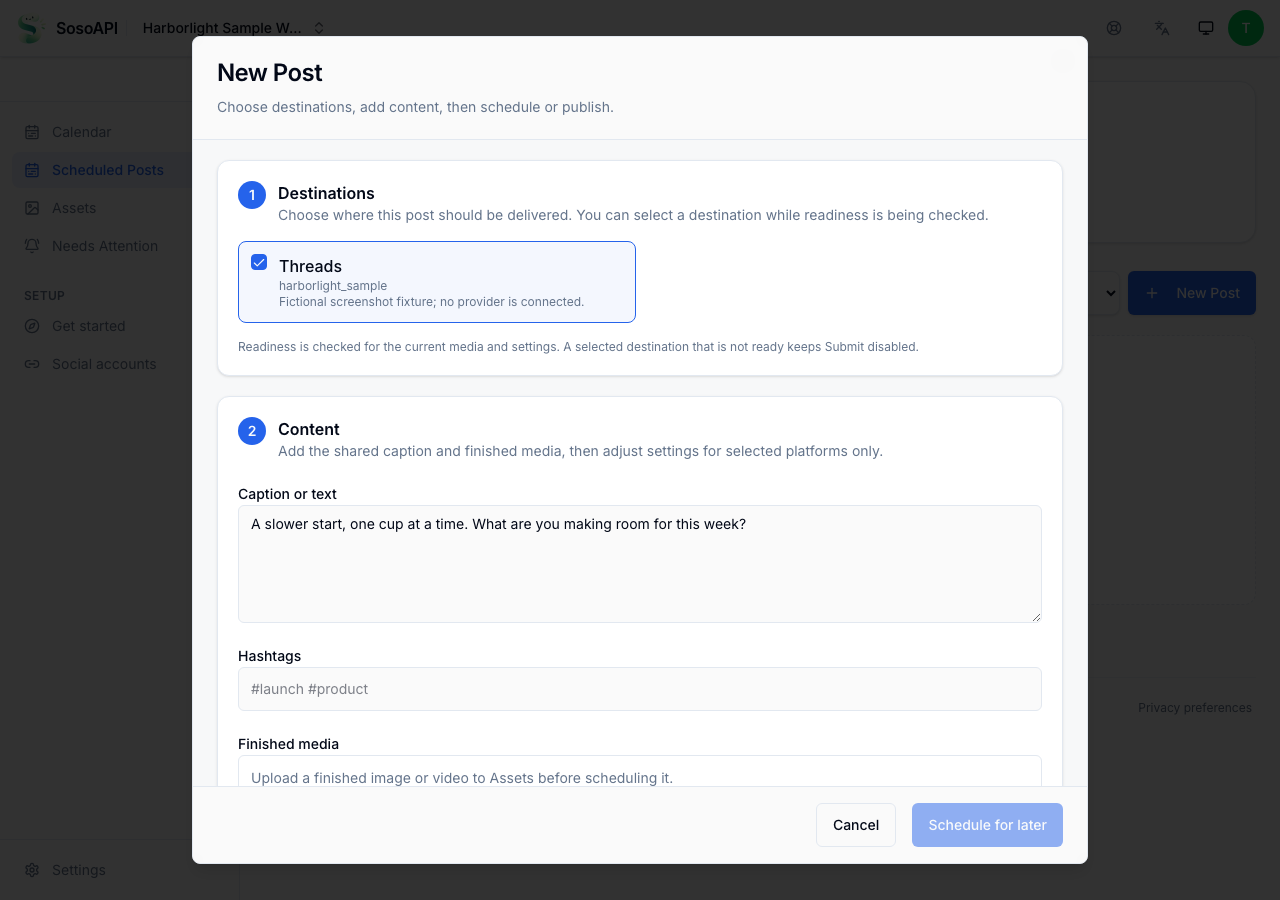
Open Calendar and choose New Post to compare the review step with the same action in the App.
Replace every placeholder with your authorized IDs, a future ISO timestamp with offset, and a unique idempotency key. Review the account, copy and time before running this server-side request.
const apiKey = process.env.SOSOAPI_API_KEY;
if (!apiKey) throw new Error("Configure a SosoAPI API key on your server");
const response = await fetch(
  "https://gqeshlawtcexsapabaui.supabase.co/functions/v1/studio-api/scheduled-posts/create",
  {
    method: "POST",
    headers: {
      "Authorization": "Bearer " + apiKey,
      "Content-Type": "application/json"
    },
    body: JSON.stringify({
  "workspace_id": "<workspace-uuid>",
  "social_account_id": "<threads-social-account-uuid>",
  "caption": "A small note for later: Harborlight Journal is making room for shorter daily reflections. Keep one thought; leave the rest for tomorrow.",
  "hashtags": [],
  "media": [],
  "provider_payload": {"platform": "threads", "publish_options": {"post_type": "TEXT"}},
  "scheduled_at": "<future ISO-8601 instant with offset>",
  "display_timezone": "Asia/Hong_Kong",
  "idempotency_key": "<unique-stable-key-for-this-intent>"
})
  }
);
const result = await response.json();
if (!response.ok) throw new Error("SosoAPI request failed: " + response.status);
// Use result in your server response; never return or log the API key.
Running this request creates a real schedule. Submit only after the user confirms, and never expose the API key to a browser.
What to expect
A valid accepted response identifies the resulting Scheduled Post; it is not proof that a provider has published it. A denied capability, invalid scope/account, unsupported payload, or rejected schedule must be shown as an error, not reported as success.
Render the returned state and give the user a safe follow-up
Open this area in SosoAPIStore the returned Scheduled Post ID and display its current state, destination, and schedule in the product.
Link the user to the matching Scheduled Post detail. If delivery needs a person, link the Needs Attention item instead of silently resubmitting.
Do not label the request published until the final provider-confirmed status is recorded.
What to expect
The product distinguishes a request receipt from scheduled, publishing, published, failed, and unknown observations. Unknown results are reconciled against the existing post before a new write.
A request receipt. Then a publishing result.
The examples below show selected API response fields with fictional values. After creating a schedule, save post.id and use it to check that post’s result.
1. Create response
{
  "post": {
    "id": "10000000-0000-4000-8000-000000000001",
    "status": "scheduled",
    "scheduled_at": "2100-01-05T10:00:00+08:00",
    "published_at": null,
    "permalink": null
  },
  "deduped": false
}
2. Read the same post
POST /studio-api/scheduled-posts/get
{
  "id": "10000000-0000-4000-8000-000000000001"
}
After provider confirmation, the detail response can include:
{
  "post": {
    "id": "10000000-0000-4000-8000-000000000001",
    "status": "published",
    "published_at": "2100-01-05T02:00:08Z",
    "permalink": "https://www.threads.net/@example/post/EXAMPLE"
  },
  "delivery": {
    "stage": "terminal",
    "message": "Published on Threads."
  }
}post.status- Use the actual state, such as scheduled, publishing, published or failed. If a connection drops, read the same post before deciding what happened.
post.permalink- The provider post link when available; it may be null. The URL above is an example.
delivery / outcomes- The detail response shows publishing progress and the platform results available for the post. If it fails, check those details and Needs Attention before choosing what to do next.
These are field examples, not a live publishing receipt. This page makes no API calls.
What each status means
SubmittedRequest response- Your request was received. Check the post’s current state before treating it as scheduled or published.
ScheduledPost details- The Scheduled Post is accepted for a future time. Keep its destination and scheduled time visible while it waits.
PublishingPost details- Delivery is in progress. Wait for a terminal result; an in-progress state is not success.
PublishedPost details- Use this only after SosoAPI records terminal provider confirmation for the Scheduled Post.
FailedPost details- A terminal failure needs review. Check the post detail and available action before deciding what to change or retry.
UnknownWhat the app shows- If a connection drops and the result is unclear, check Scheduled Posts and Needs Attention before submitting again.
Related guides
The walkthrough includes server-side API examples. Configure your authorized IDs and API key before running them; the page itself makes no requests.
Try your first workflow.
Create your account and start with Free.