
AI workflows
AI drafts. You decide.
An external AI tool drafts a post for a fictional product; a person reviews the copy before scheduling.
AI + HUMAN REVIEW
Illustrative example- External AI toolDraft from a clear brief
- Human reviewCheck facts, copy, and media
- SosoAPIChoose the account and time
Three steps
Draft with AI
Provide the topic, tone, and product facts.
Review it yourself
Check the facts, media, and destination account.
Schedule with SosoAPI
Pick a time, then follow the publishing result.
AI helps you prepare. You stay in control of publishing.
View the full walkthrough
Scenario
Use an assistant to prepare a first draft from a bounded fictional brief, check every statement and destination yourself, then schedule only the approved text through the SosoAPI app.
Before you start
- Use any AI client you already trust, if available; SosoAPI does not promise that every GPT or Claude client has an integration.
- Do not paste social credentials, access tokens, private customer information, or unpublished account data into the prompt.
- To schedule in the app, select an eligible connected account and use a Workspace editor/owner role.
Example inputs
- Fictional project
- Harborlight Journal · concept for a small daily-writing product.
- Audience
- People who want a low-pressure writing prompt; no demographic or customer profile is assumed.
- Approved facts
- The concept encourages a short daily reflection. No launch date, price, performance result, or customer quote is approved.
- Human guardrails
- Keep the tone calm and specific; do not invent capabilities, testimonials, urgency, or measurable outcomes.
- Planned destination/time
- <one user-selected eligible account> · <future local date and time> · Asia/Hong_Kong.
Prompt for a compatible assistant
Copy this brief into a compatible assistant or use it as a manual writing brief.
Draft three short social captions for the fictional Harborlight Journal concept using only these approved facts: it encourages a short daily reflection. Audience: people who want a low-pressure writing prompt. Tone: calm, specific, welcoming. Do not invent features, launch dates, prices, customer quotes, outcomes, or urgency. Return plain text options and list any assumption you made. This is a draft for a human to review; do not publish or schedule anything.Walkthrough
Ask for a draft, not an action
Paste the fictional brief and prompt into a compatible AI client you already use, or write the options manually from the brief.
Keep the request limited to copy preparation. Do not ask the assistant to connect an account, choose a hidden destination, or schedule a post.
What to expect
You receive draft options and any stated assumptions. The output is unverified copy, not approval and not an SosoAPI action.
Review and edit every claim
Compare the draft line by line with the approved facts above. Remove any invented product feature, date, result, testimonial, or urgency.
Choose one caption, edit it into your own approved wording, and record who reviewed it. Confirm the target account and time separately.
What to expect
One human-approved caption and an explicit destination/time are ready. Reject or revise the draft if any claim cannot be verified.
Check account readiness, then schedule in the app
Open this area in SosoAPIConfirm the intended connected account and Workspace. If the account is not eligible for the requested action, stop rather than substituting another account.
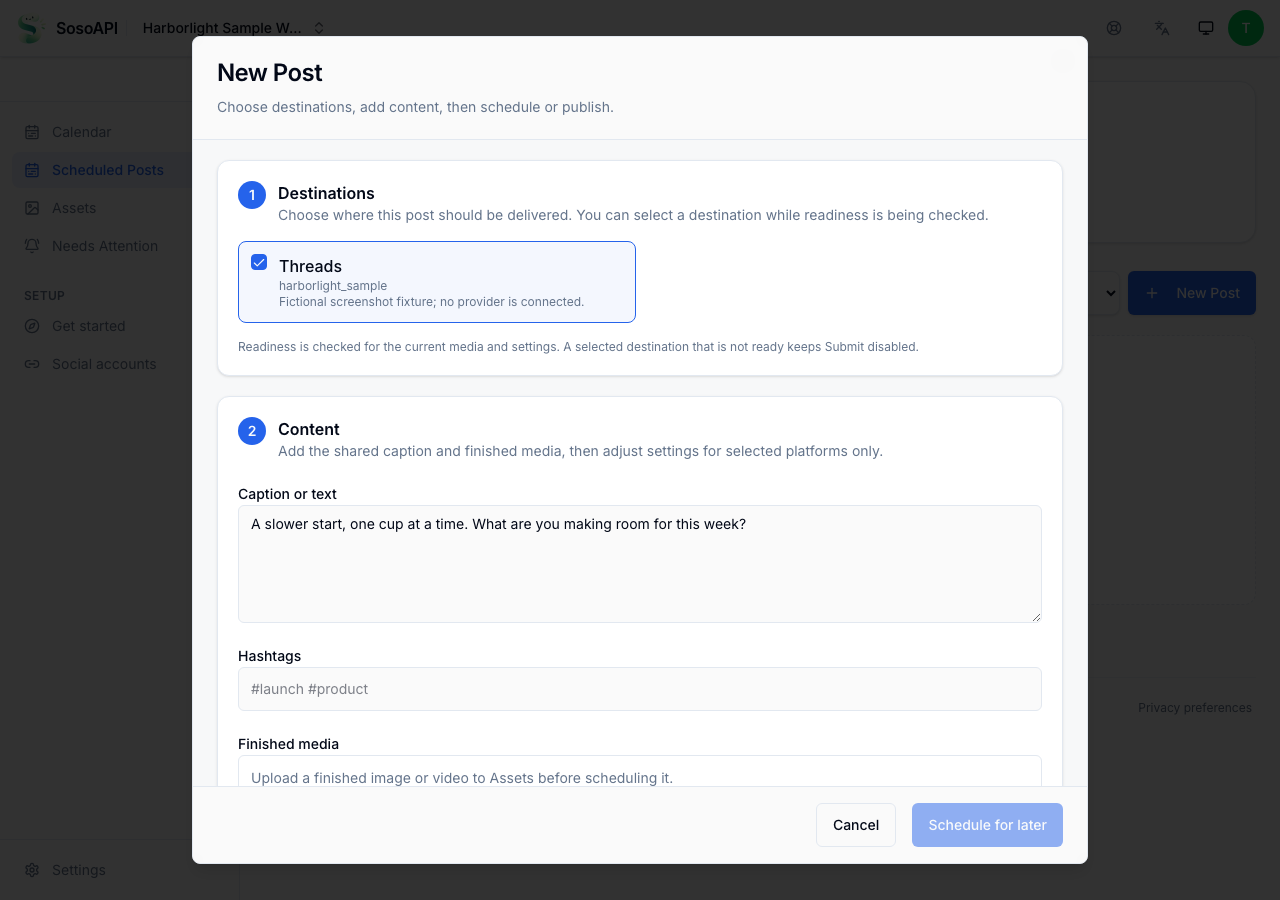
Open /calendar, choose New Post, enter the reviewed caption, add finished media only if the selected destination requires it, and choose Schedule for later.
Set a future time and Asia/Hong_Kong timezone. Review the destination and final text before submitting once.
What to expect
If accepted, the app returns a Scheduled Post receipt/status for that destination. The assistant did not schedule it, and acceptance does not mean it has published.
Follow the actual delivery result
Open this area in SosoAPIOpen the Scheduled Post detail and check its current status and delivery history.
If its result is failed, review the available remedy. If it is still publishing or unconfirmed, wait/check existing state and use /attention when directed; do not create a duplicate.
What to expect
Only a terminal provider-confirmed result is published. Otherwise report the actual scheduled, publishing, failed, or unknown state without claiming success.
What each status means
SubmittedRequest response- Your request was received. Check the post’s current state before treating it as scheduled or published.
ScheduledPost details- The Scheduled Post is accepted for a future time. Keep its destination and scheduled time visible while it waits.
PublishingPost details- Delivery is in progress. Wait for a terminal result; an in-progress state is not success.
PublishedPost details- Use this only after SosoAPI records terminal provider confirmation for the Scheduled Post.
FailedPost details- A terminal failure needs review. Check the post detail and available action before deciding what to change or retry.
UnknownWhat the app shows- If a connection drops and the result is unclear, check Scheduled Posts and Needs Attention before submitting again.
Related guides
This is an illustrative workflow, not a claim that every GPT or Claude client integration is currently available.
Try your first workflow.
Create your account and start with Free.